
Creating a Value Chain
A value chain shows how your organisation creates value from left to right — from idea through to delivery and outcomes.
Colloquial supports value chains as a visual canvas layer. They help teams reason about flow and ownership, but are not used as structural architecture objects.
What you will build
You will create
- A horizontal set of value stages (e.g. Recruit → Enrol → Design → Delivery)

These are drawn on a fixed-grid canvas so they line up cleanly.
Prepare your canvas
This gives you a stable grid for aligning stages and layers. Open the view you want to use.
-
Open View Toolbox
Select Canvas
Set:
- Mode → Fixed
-
Columns → 10–12 (most value stages fit in this range)
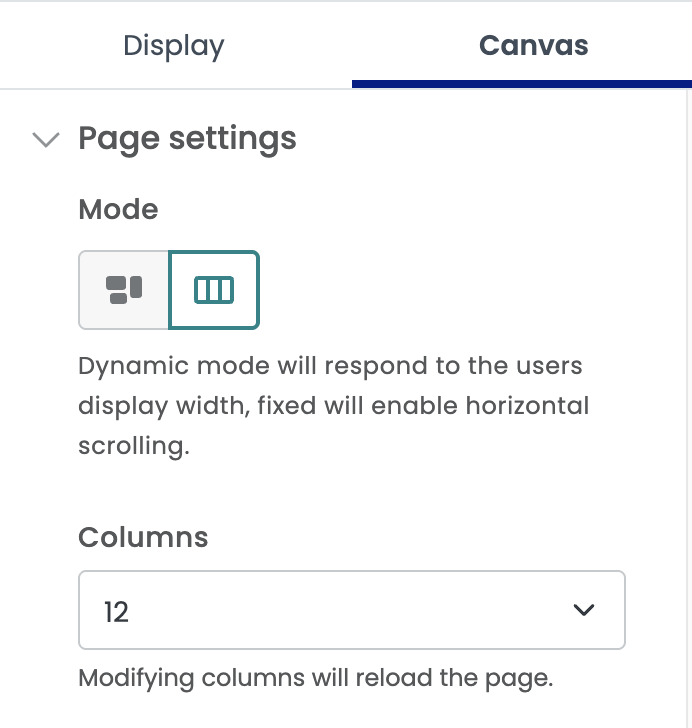
View Toolbox > Canvas
Create your Capability Groups
Value chains sit inside of a capability layers. These are your horizontal bands.
To create them:
- Go to Settings → Groups
- Open the Capabilities tab
- Add one Group per value chain (a card on the page) (e.g. Core, Supporting, Enabling)
You may create sub-groups now or later. These will appear below your value stages.
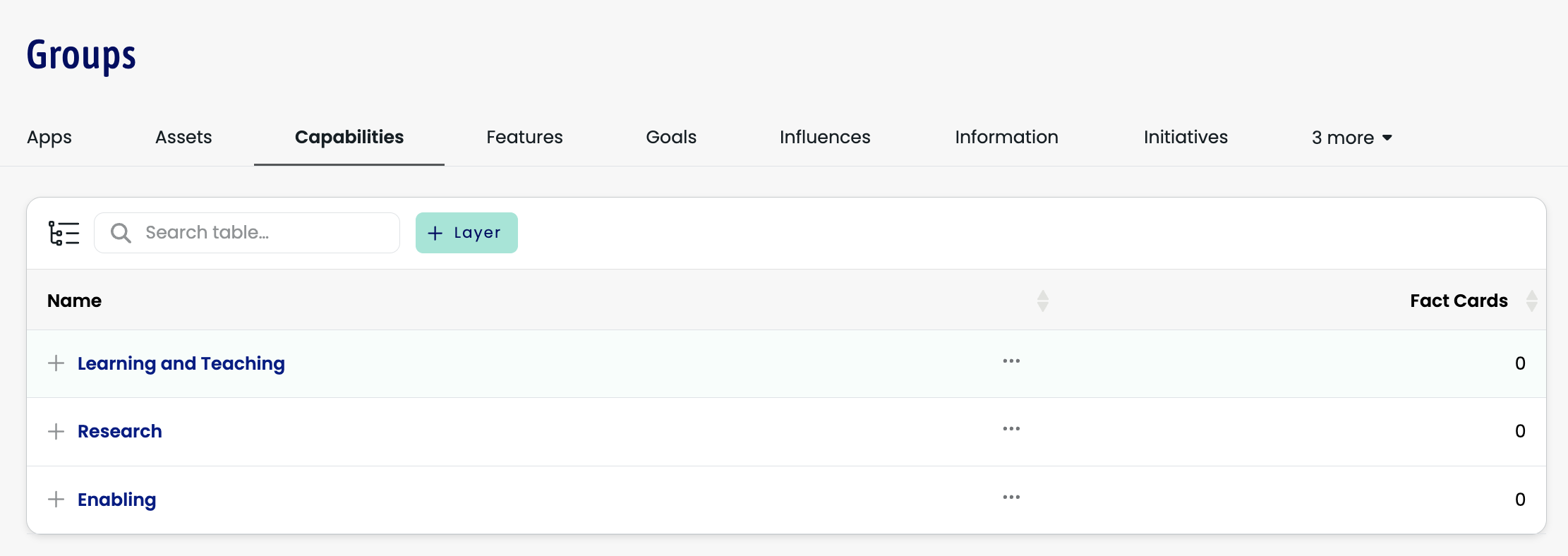
Typical examples:
| Industry | Layers |
|---|---|
| General | Core, Supporting, Enabling |
| Higher Education | Learning & Teaching, Research, Corporate |
| Banking | Retail, Business, Wealth, Shared Services |
| Energy | Upstream, Downstream, Corporate |
Notes:
- These groups are layout bands
- They do not contain data, facts, or relationships
- You can rename them via Organisation → Terminology
Add value stages
Value stages are the column headers for your value chain. You can add one set of value stages to each layer.
By default all available layers (the root Groups) will appear. You may use the View Toolbox to hide or reorder the layers.
Examples:
- Discover → Buy → Use → Support
- Attract → Enrol → Teach → Graduate
- Acquire → Underwrite → Service → Renew
To add them:
- Open or create your Capability View
- In the first Layer, such as "Core". Click the ⋯ (more) → Value Stages
- A drawer will open
- Add one row per stage
For each stage set:
| Field | What it does |
|---|---|
| Name | Shows on the canvas |
| Description | Appears as a tooltip |
| Width | How many columns it spans |
If stages wrap to a second row:
- Increase Canvas Columns (max 12)
Layout your groups on the canvas
Now place the layers into the view. By default all available layers (the root Groups) will appear. You may use the View Toolbox to hide or reorder the layers.
- Open or create your Capability View
- In the first Layer, such as "Core". Click the ⋯ (more) menu on a group
- Use Dimensions
- You can expand width, shrink width, expand height, shrink height.
- Width → controls how many columns it spans
-
Height → allows multiple rows

- Arrange the groups:
- Groups flow left to right
- Rows stack top to bottom
- If you cannot get the layout you want, support can help tune the grid

Styling your value chain
Value stages use your organisation’s brand colour.
To change it:
- Go to Organisation → Settings
- Set your Brand Colour
If you want help modelling a specific industry value chain (insurance, higher education, government, etc), support can provide starter templates.