
ServiceNow: Connect using OAuth 2.0
Connect your ServiceNow CMDB to Colloquial so Configuration Items sync into Fact Cards, field mappings stay aligned, and you can review sync status from Settings.
Only admins can connect and configure Settings > Integrations > ServiceNow.
What you get
After you connect an instance, Colloquial imports CIs and keeps mapped fact templates in step with ServiceNow. External templates are read-only in Colloquial and update when you sync.
ServiceNow Account Setup
- Create the integration user account first so you can select it later.
- Enable Inbound Client Credentials Grant Type
- Navigate to: All → sys_properties.list
- Click New to add a new system property
- Enter the following details:
- Name:
glide.oauth.inbound.client.credential.grant_type.enabled - Type: true | false
- Value:
true
- Name:
-
Save the property.
- Display Required Fields on the Application Registry Form: By default, the Default Grant Type and OAuth Application User fields are not visible on the Application Registry form. To add these fields:
- Go to System OAuth → Application Registry.
- Click New.
-
- Select Create an OAuth API endpoint for external clients.
-
- In the header menu,
-
- choose Configure → Form Design.
-
- In the Form Designer, drag and drop the Default Grant Type and OAuth Application User fields into the form layout.
-
- Click Save to update the form
-
- Create OAuth2 Client Credentials
- Navigate to System OAuth → Application Registry.
- Click New.
- Select Create an OAuth API endpoint for external clients.
- Fill in the required fields:
- Name: Enter a descriptive name for the integration.
- Client ID: This will be auto-generated.
- Client Secret: This will be auto-generated or entered as required.
- Default Grant Type: Select
Client Credentials. - OAuth Application User: Choose the integration ServiceNow user created in step 1 (use the search icon if needed).
-
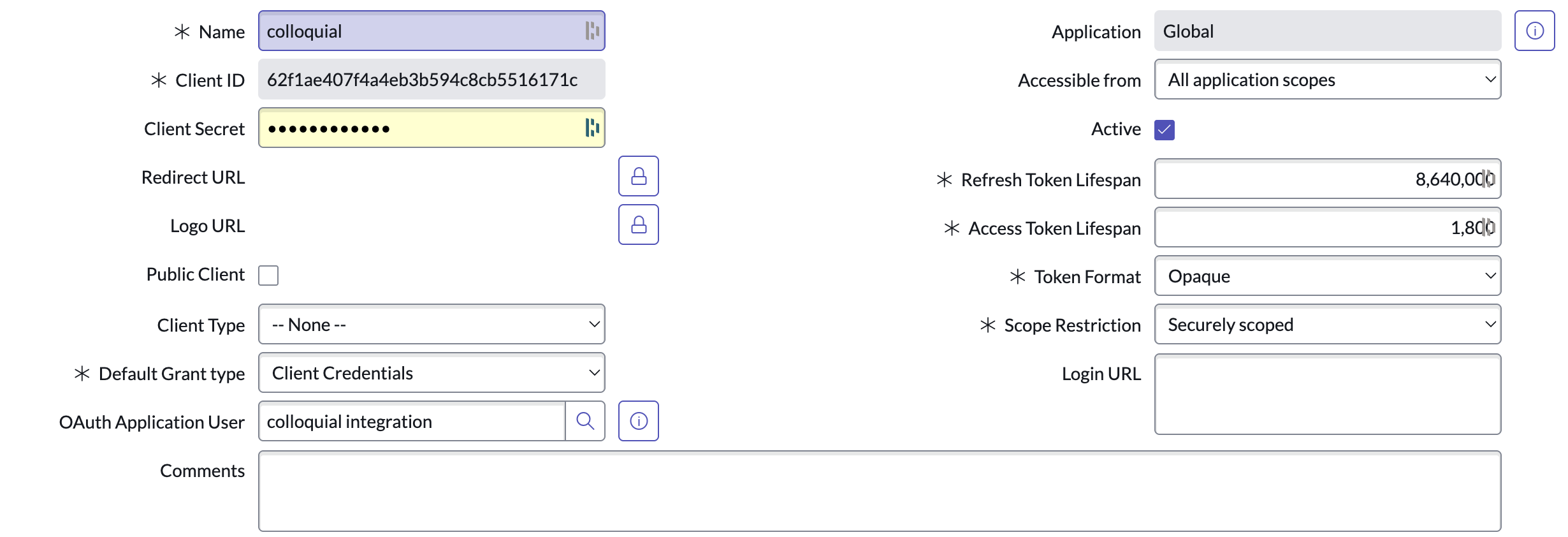
- Click Submit to create the OAuth client
Connect an instance
- Open Settings > Integrations > ServiceNow.
- Review the short description on the Setup tab, then click Connect ServiceNow.
- Enter your ServiceNow endpoint and credentials as prompted and save.
Table mapping, sync, and field mapping
Each connected table appears as its own tab. On the Summary tab you can run Sync now, see last results, and choose how often automatic sync runs (for example hourly or daily). On Configure, map ServiceNow fields to Colloquial fact templates; mapped fields show as external and stay synced.
If you need to link a CI to an existing Fact Card, use the match flow from the mapping table when it is available.
Related
For bulk Excel work in the same workspace, see the Import Data User Guide.